Configuration
Configuration controls the game path, app data, automatic backups, card-text maintenance, appearance, and settings used when writing Unity bundles. Open it using the gear icon in the navigation toolbar.
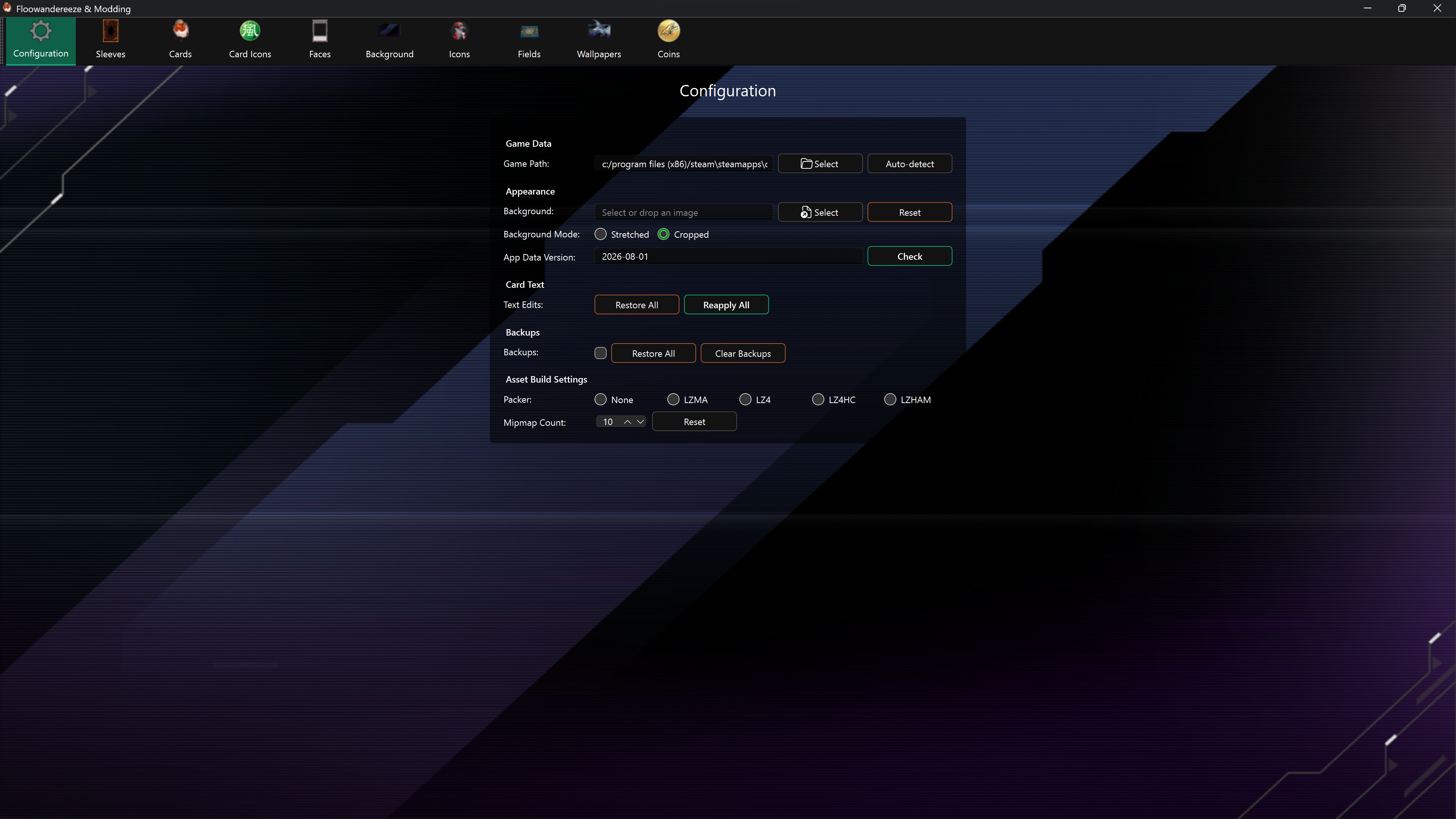
Game Data
Game Path
The path must be the active player-ID folder under Master Duel's LocalData directory. Auto-detect searches the main Steam installation and configured Steam library folders. Select lets you browse manually.
After changing the path, restart the application so every editor loads data for that profile. See Getting started for an example path.
Metadata Source
Use Metadata Source only if you need an alternative source for the app’s card and asset data. Enter the GitHub repository as owner/repository and, optionally, a Branch. Leave Branch blank to use the repository’s default. Choose Save source to save your selection, or Use defaults to return to Nauder/floowandereeze-and-modding-etl.
Choose Check to download data from the selected source. Changing the source refreshes the data even if its version date is older, while preserving your saved edits and backups. After updating, choose Refresh card list in Summons or restart the app to refresh the other editors. An alternative source must provide data compatible with the app.
App Data Version
Choose Check to compare the installed data index with the current version and download updates when necessary. The update covers sleeves, cards, card icons, faces, wallpapers, fields, player icons, deck boxes, card metadata, coins, and available summon animations.
The update progress cannot be cancelled. Let all tasks finish, then restart the application if editor contents do not refresh immediately.
Appearance
Choose or drag an image to use as the application's background. This changes only the modding tool, not Master Duel.
- Stretched fills the window and may distort the image.
- Cropped preserves the aspect ratio and crops overflow.
- Reset removes the custom image.
Changes are applied immediately. A darker image usually keeps labels and controls easier to read.
Card Text
- Reapply All writes every saved modded card name and description back to the current game metadata. This is useful after a game update.
- Restore All writes the original names and descriptions back for every card with saved edits.
Both actions can take a long time. Confirm the prompt and leave the application open until it reports completion. Restoring text in the game does not erase the saved modded values, so they can be reapplied later.
Backups
- Enable Backups before replacing assets to save the original texture on the first replacement.
- Restore All restores every asset for which the app has a backup.
- Clear Backups permanently deletes every automatic backup.
Bulk restore and clear operations ask for confirmation. Backups consume local disk space and are stored beside the application under backups.
Asset Build Settings
Packer
The packer controls compression when the app saves modified Unity bundles. Available choices are None, LZMA, LZ4, LZ4HC, and LZHAM. LZ4 is the default and is the safest choice unless you have a specific compatibility or size requirement.
Mipmap Count
This controls the number of mipmap levels generated for supported replacement textures. The default is 10. Lower values may reduce file size but can make distant or downscaled textures look worse; unusually high values may not suit small images.
These settings affect replacements made after the setting changes. Some special assets use fixed texture settings and do not use the global mipmap count.
Safety notes
Use the Backups tab to view, selectively remove, export, or import saved backups by category, all files, or manual selection. Clear Backups removes the same inventory, including nested overframe backups.
- Backups are not retroactive.
- Game updates and other mods can overwrite changed bundles.
- Clear Backups cannot be undone from within the app.
- Selecting another player profile changes which game files the app modifies, but the app's saved preferences and edits remain in its local database.
Choose Check to update accessory names, then restart the app to refresh labels and search suggestions. See Sleeves, Player Icons, Card Icons, Coins, and Deck Boxes for search instructions.
Summon animation data
Choose Check to download available summon animation data. Some data sources may not include summon animations; other editors will still work. The Summon Animation Editor uses your configured game version and game path automatically.