Card Editor
The Card Editor replaces card artwork and edits card names and descriptions. It also provides search, favorites, extraction, bundle copying, and regular-expression text replacement.
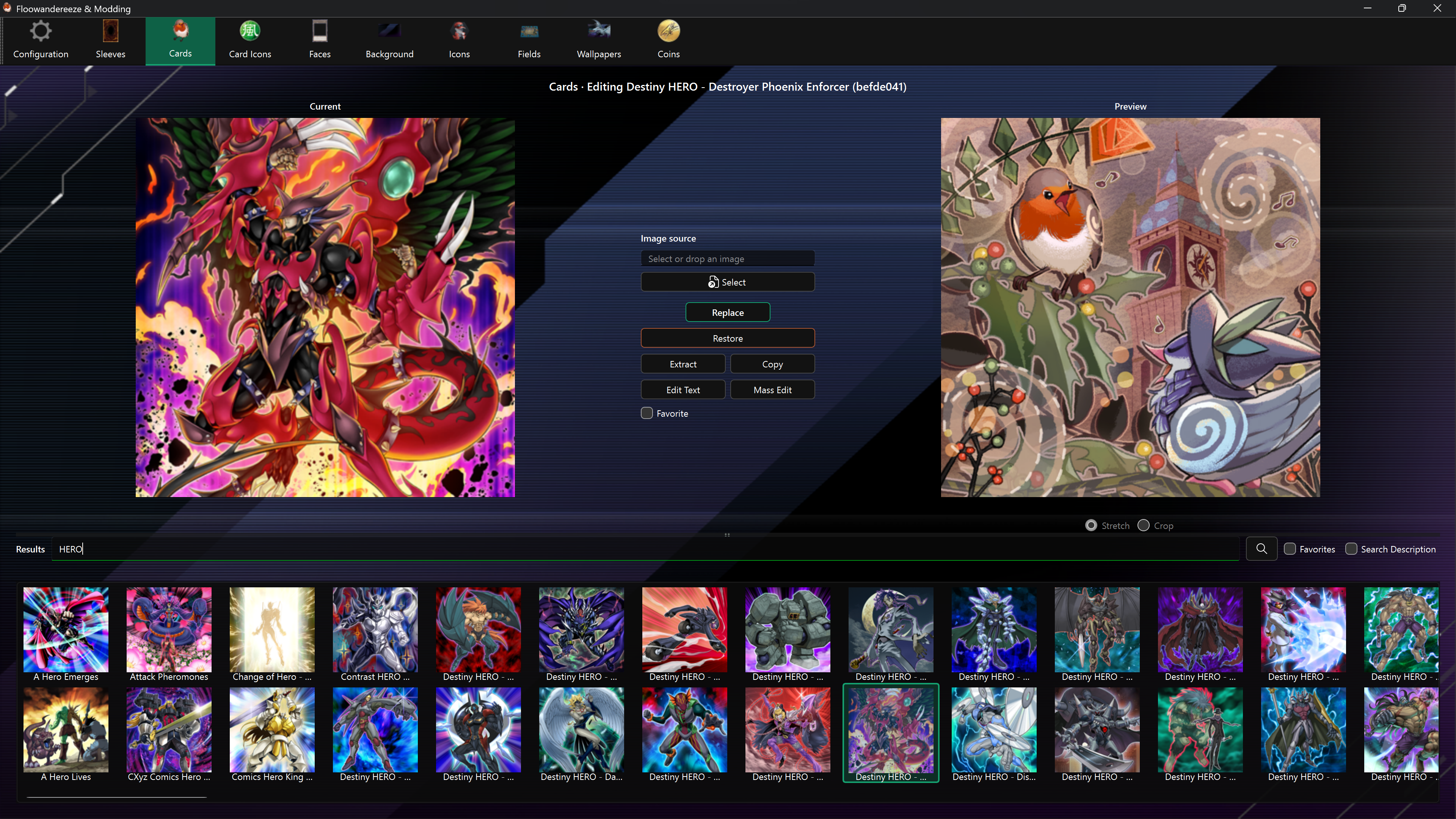
Find and select a card
Enter at least three characters and press Enter or use the search button. Search is case-insensitive and matches partial original card names. The autocomplete list can be used for quick selection.
- Search Description includes original card descriptions in the search.
- Search Bundle includes bundle names in the search. Partial bundle names work, and this option can be combined with Search Description.
- Favorites shows only cards marked as favorites.
- Favorite changes the selected card's saved favorite status.
Select a result to load its current artwork and enable its actions. A saved modded name appears in the editor context alongside the original name.
Use Ctrl-click to select multiple cards or Shift-click to select a range for mass editing.
Replace card artwork
- Select a card.
- Choose a PNG or JPEG with Select, or drag it onto the page.
- Check Preview.
- Choose Replace.
Use Stretch to fill the target texture or Crop to select a region with the target aspect ratio. Drag the crop to reposition it and use the mouse wheel to zoom. The preview is resized to the dimensions shown beside the image controls. Selecting another card resets the crop for its target dimensions. Current artwork, previews, and result thumbnails preserve their texture aspect ratios. Current and Preview images stay centered beneath their headings when the window size or card dimensions change.
Overframe cards
Overframe cards use a 704 × 1024 replacement canvas, with portrait previews and a matching crop. Use PNG to preserve transparency outside the illustrated subject. The Overframe switch shows the selected card’s current framing. A tall texture alone does not identify an overframe card: Pendulum cards can also have tall textures.
Uncheck Overframe to switch the selected card to normal framing. This saves the framing change immediately and changes the replacement preview to 512 × 512. Select or crop a suitable normal illustration, then choose Replace. Changing framing does not generate a normal illustration or replace the texture automatically. Close the game while editing and restart it to check the result.
You can also enable Overframe for supported normal cards. Check it, prepare a transparent image in the portrait preview, and choose Replace. The switch changes framing immediately; it does not create new artwork. Normal Pendulum textures keep their existing dimensions until overframe is enabled.
Check Overframe again after disabling it to restore that card’s saved framing, then replace its artwork if needed. Other cards are unaffected. Image Restore restores only the artwork; use Overframe separately to change framing.
Original framing is backed up automatically under backups/cards/full_art for each player profile, even if image backups are disabled. Clearing these backups prevents the control from restoring the original framing exactly. Game updates and other mods can change framing; reselect the card to refresh its status.
If an update changes the gate bundle's location, Locate overframe data appears. Select the bundle containing the of_card_asset TextAsset from the game's LocalData/<account>/0000 or masterduel_Data/StreamingAssets/AssetBundle folders. The app validates the TextAsset before using it; this selection lasts for the current Cards tab session. When the gate is unavailable, framing changes are disabled and artwork editing uses the current texture's dimensions.
Edit one card's text
Choose Edit Text to open the selected card's dialog.
- Edit Name and Description, then choose Replace.
- Restore Name and Restore Description put the original values back into the dialog before saving.
- Both fields must remain non-empty for a direct replacement.
The same dialog can apply a Python regular-expression replacement to the selected card. Enter a pattern and replacement, choose Names and/or Descriptions, then use Apply Regex to Card. Capture groups such as \1 are supported in replacement text.
Mass edit card text
Mass Edit applies a Python regular-expression replacement to All cards, Selected cards, Search results, or Favorites in the current TCG/OCG region. Each scope shows its card count. Choose whether to replace names, descriptions, or both; existing text edits are used as the starting text.
Click Preview Changes to see how many cards will change and the replacement count. Choose an affected card to compare its before/after text. In Differences, removed lines are red, added lines are green, headers are blue and bold, and newline notes are muted and italic. Colors adapt to light and dark themes; the - and + prefixes also identify removals and additions.
Choose Apply Changes after reviewing the preview. Changing the expression, replacement, fields, or scope requires another preview. Empty scopes and replacements that leave text unchanged cannot be applied.
See Regex mass editing for scope details and replacement syntax.
Extract, copy, and restore
- Extract writes the card texture to
images\cards. - Copy writes the complete bundle to
bundles\cards. - Cards stored directly in
data.unity3dcan be extracted but cannot be copied as standalone bundles. - Restore writes the automatic image backup back to the selected card.
Card-text edits are tracked separately from image backups. Use Configuration's text Restore All or Reapply All for bulk text maintenance.
Notes
- Card text changes can take significantly longer than image replacement. Wait for the completion message before closing the app.
- Search uses the original card text, not a saved modded name or description.
- Enable backups before the first artwork replacement if you want per-card Restore to work.